In a previous post ( see The impact of the Pause step on script performance. ), I showed how the Pause script step negatively influences FileMaker’s performance in long running scripts. The obvious solution is to not use it in such scripts. This advice however introduces two problems in the design of the user experience. Informing the user how far the long running script has progressed becomes cumbersome. And so does allowing them to abort the script in a graceful way – that is in such a way that any mess of unfinished business can be cleaned up. This post, explains what these problems are and provides a solution, which paradoxically and unfortunately still needs an occasional pause. A free demo file is available.
1 Limitations of FileMaker’s progress reporting
Like many software packages, FileMaker shows small pop up windows to show the progress of actions that last longer than a few seconds. For example, when it is sorting records, it may show this one:
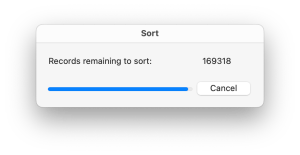
These messages confuse the user because they may not see the relation between the button that they pressed and the reporting that they see. For example, they may not realize that for printing a certain report, FileMaker needs to sort records. This is exacerbated by the fact that different progress windows may pop up for different actions, one after the other, depending on what FileMaker exactly is doing. What all the pop ups unfortunately do not show, is how far the script has progressed, which is the only thing users are interested in.
Long running scripts usually take long because they have to process a large set of records. So the best progress indicator takes into account how many records have been dealt with. This information is available in FileMaker’s Status Toolbar, but it may not be visible to the user, depending on other design choices. Worse, even if visible, it does not update information as one would expect either.
This leaves the option of presenting progress information through text or other means on a FileMaker layout. The same goes in cases where not the amount of processed records, but some other indicator is best used to show progress. For example, the number of websites that has been visited.
This one remaining option requires regular refreshing of the layout, which in turn requires, you guessed it, a Pause script step.
2 Limitations of User Abort
When a script is running and Allow User Abort is on, then the user can abort the script by pressing CMD-. on Mac or Ctrl-. on Windows. The escape key works as well. A user aborting the running script in these ways, will not only stop the currently running script, but will stop all scripts in the call stack ( and perhaps the queue as well, the documentation is not explicit on this ). Also, FM will show the window and layout which had the focus at the time of the abort. This can easily not be the window and layout in which the user performed the action that triggered the scripts. The result is messy because the abort can not be handled gracefully.
It would be great to have a On User Abort script step that allows the developer to determine which script to run upon an abort before the abort is carried out. Unfortunately, it does not exist.
For the developer, the easiest way out is to disallow user abort. It is a drastic option because the user will feel powerless and if they can not see reliable progress information they may get impatient, or get the feeling that the application got hung up. They then may use their only remaining option, which is to force quit FileMaker. This not only results in a potential mess because of the abortion of the running script, but also because it ungracefully quits the solution. That is, a graceful quit may require OnWindowClose and OnLastWindowClose script triggers to be activated in order to clean up and or do administration.
Fortunately, there is another option. It involves the Pause script step, as will become clear in the next section.
3 How to allow user abort while Allow User Abort is off
From the above it becomes clear that Allow User Abort has to be set to off to prevent ungraceful script abortions. The question then is, how can a user get the attention of a running script. The key is that almost nothing can interrupt a running script. Well, except when it itself causes another script trigger. For example by moving the focus to a layout that has an OnLayoutEnter trigger.
Triggers that are fired by the user during the running of a script, such as OnLayoutKeystroke, will be put on the script queue. They will all be executed only after the running script finishes,
… or when it pauses.
It is not explicitly stated in the documentation. The section on the Pause / Resume Script step, merely states that it “Pauses a script so the user can perform other tasks in the current window.” It also mentions that “You can define buttons to let users perform actions not available on the menus.”
Let us assume that button-triggered scripts, like all scripts, are first put on the script queue before they are executed. Then the above quotes would mean that when a script is paused, FM continues checking and processing the queue when executing a Pause, in order to be able to respond to button clicks. The help section on starting scripts confirms this. The same would have to be true for user actions that fire layout triggers because that would be part of ‘perform[ing] other tasks in the current window’.
The key is that if one wants to give users the possibility to abort gracefully, the running script ( A ) has to be paused regularly in order to allow processing of a user action intended to abort the script A. The problem is that following the above, FM only starts checking the script queue when executing the Pause step. Not before or after, whereas one would want to provide the abort option at all times during a long running script. And indeed, as becomes clear below, button clicks are only queued and processed when they occur during a pause. However, as I discovered, the OnLayoutKeystroke script is queued when the trigger fires at other times as well.
This gives use an opportunity to program a graceful user abort. The following section describes a possible implementation.
4 Implementation of graceful user abort
Download the demonstration file here. The file, which was created in FMP 19, contains one table with one field, three scripts and one layout.
The following subsections will walk through the main script and point out the important elements in the layout. In outline, the script graceful_user_abort_demo manages the execution of the ‘payload’ and handles checks to determine if the user wants to abort. The payload is a script call or a set of lines with the actual script steps of the long running script in a production setting.
4.1 graceful_user_abort_demo script
- [Lines 1 to 7] get the script going in the right layout and mode.
The lines also initialize variables. One can play around with the variables $busy_time, $pause_time and $demo_time. All times are in seconds.
$busy_time needs to be long enough for a user to press keys and/or click a button. It is set to 10 seconds. $pause_time would normally be a very low number, like a micro second. However, it is interesting to know what happens when it is set to a couple of seconds. This will be discussed below in section 4.2.1. $demo_time determines when the demo finishes if the user does not abort. It should be set high enough to allow for a couple of repeats of $busy_time + $pause_time.
Obviously, in production settings, the choice for $busy_time can be chosen differently and/or can be dependent on the actions in the payload. The higher $busy_time is, the lower the pause frequency ( line 27 ) is. Keep in mind that the pause frequency should be as low as what would be acceptable to the user. The frequency should not be as high as possible in order to achieve fast response times. This is because the Pause step causes a slow down thousands of micro seconds after the pause has finished, perhaps even up to a second ( see the previous post ).
- [Line 9] Allow User Abort off. Very important, as explained above.
- [Line 10 and 53] are the start and end of the outer loop which is the main mechanism for regularly checking if the user wants to abort.
- [Line 12 to 23 ] Presents a progress message to the user and simulates that something is being done.
These lines would be replaced by the payload.
- [Line 25 to 27] update the message to the user and execute the Pause step.
In production, only the Pause step is needed ( and essential ) and can be set to a very short time.
- [Line 29 to 50] provide feedback to the user for demo purposes, and reset variables.
In this demo, there are two possibilities to abort: the user presses the Escape key, or clicks one of the Abort buttons. In production settings the Abort button option would not work – as discussed above, so only lines [ 32 to 34] would be needed.
Notice that $$keystroke_detected, $$user_clicked_button and $$escape_pressed are reset to False for re-use. If and when they are set to True, that happens outside this script, as will become clear in the following subsections.
- [ Line 52 ] exit condition
Either the user aborted or the payload has finished its work. In the demo the latter is represented by the expiration of $demo_time.
- [Line 56] is a reminder to do any work to round off if and after the user aborted execution of the payload.
- [Line 58 to 62] clean up the $$ variables and indicate to the user that the demo finished.
4.2 user_abort_demo layout
The demo file has only one layout. It contains a merge variable ( $$progress_indicator ) to present the progress messages to the user, and three possibilities for the user to abort the execution of graceful_user_abort_demo: two buttons and a script trigger
4.2.1 Abort buttons
The two buttons are programmed to set $$user_clicked_button to True in two different ways respectively. While graceful_user_abort_demo is running they will only be effective if that script is pausing ( which is documented, as mentioned above ). This can be tested by setting $pause_time to some seconds instead of a microsecond, so that the user has time to click during the pause. For some unknown reason, when clicked, their action is not put on the script queue when a running script is not pausing. FM produces a beep when a button is clicked outside the pause, seemingly to alert the user to the failure.
In a production setting, this means that an abort button is not a practical option because the busy and pause times can not be set in such a way that the script runs fast ( i.e. does not pause much nor often ) and that the user has a chance to effectively click the abort button.
4.2.2 OnLayoutKeyStroke trigger
The third option of OnLayoutKeyStroke does not have the downside of the button option.
Similar to button clicks, when graceful_user_abort_demo is executing and pausing, and the user presses a key, the effect will immediately be visible in the Script Debugger. The triggered script appears in the call stack, and the debugger shows that it is being executed.
However and unlike the button clicks, when graceful_user_abort_demo is executing but not pausing, and the user presses a key, then nothing shows in the debugger … until the Pause step. At the Pause step, the triggered script occurs in the call stack and is executed. Apparently the triggered script is queued.
In any case, the take away is that, unlike button clicks, keystroke triggers are not ignored outside pauses during script execution. This means that $busy_time ( and actual busy time in production ) can be relatively long and $pause_time as short as possible.
Please note: if you are testing the above and have the debugger open, then make sure that before you press a key, the focus is on the main window, not on the debugger. Otherwise you will hear a beep and conclude that the keystroke trigger is ignored.
4.3 OnLayoutKeystroke_check_esc_key script
As the name suggests, this script runs when the OnLayoutKeystroke trigger fires.
The script sets two parameters, $$keystroke_detected and $$escape_pressed whose names speak for themselves. In principle, only the latter is needed for the graceful user abort to work, provided that graceful_user_abort_demo is adjusted accordingly.
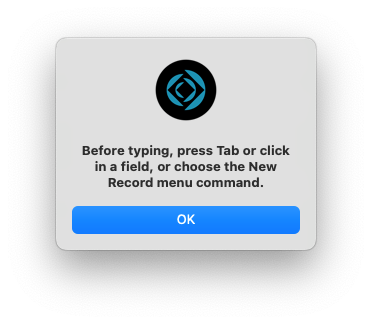
The script also makes sure that the focus is on a field to prevent the ‘Before typing, press Tab or click in a field, or …’ to occur. This is rather important. It not only prevents the messages from occurring, it also prevents them from occurring at the wrong time. They will show only when the Pause step is executed, which may be some or many seconds after the user presses the keys, causing confusion.
With thanks to Wintergreen https://fmforums.com/topic/66449-suppress-before-typing-dialog/ for proposing this solution to a question. The solution of Exit script with False, which is also suggested in this post, only works for the very first keystroke, not for subsequent ones.
4.4 Downside of the implementation
So far, I discovered one downside of the use of OnLayoutKeystroke for user abort.
It is that if $busy_time is several seconds or longer, the user does not immediately see feedback. I have tried to find solutions to this. Unfortunately, my attempts failed because they all needed a script to to be executed ( to cause a refresh ) and were all only executed at the Pause step.
As far as my knowledge and skills go, the only way to deal with this downside is to manage user expectations and behavior through messages and instructions.
5 Perform script on server
One can point out that long running scripts should be performed on the server. They should, but that does not mean that there is no need for progress reporting and the option to abort a script on the server. Especially so with long running scripts.
To do so with the above solution, one would have to rewrite the script so that it’s job can be done through a string of calls which deal with different batches of records. Each call would represent a payload.
Version 20 and newer versions of FileMaker have the possibility to use the ‘Perform Script On Server with Callback’ script step. This is an effective option to program regular progress reporting and abort checking, but would require a complete rewrite of the solution presented here.
If the previous two options are not possible, then an interface mechanism needs to be set up between the script that is running on the server and the client application/user that launched the script. The only possibility is to work with a separate table in which each record constitutes a gateway between one script and one user account. Both need to regularly update and check their status and adjust accordingly.
6 Conclusion
This post discussed drawbacks of FM’s progress messages and abort mechanism and proposed an alternative for long running scripts.
The solution has one problem for which I can only offer messages and instructions for users. That is a weak last line of defense because virtually nobody reads them. One can of course still hope that users will eventually learn to read, and that they will learn from experience with the particular script.
The alternative of having no progress indication and no means for a graceful abort mechanism, however and in my view at least, weighs up to the downside of the presented solution.
Finally, the demo script left me with a puzzle. It contains two occasions where a Refresh Window script step is not followed by a pause, but during my tests, the refreshes were neatly presented to the user. One of the two occasions is at the very end, which could explain why it works as advertised. The other occurs inside the loop. It is not followed by a pause, but by a loop that runs 10 seconds without doing anything else but checking a simple exit condition. Perhaps that allows the refresh to follow through completely. If so, then I stumbled upon a way to replace the Pause step that does not have the downside of slowing down script execution. It will be a matter of speed testing. But, if it indeed works better than a Pause step, that would also rob us of the graceful user abort mechanism.
Frank van der Most, 5 November 2025
PS On 7 November I discovered that the initially uploaded demo file does not work. ( notes to self: 1) never forget to check that you made sure you did a thorough job on the change of a variable name . 2) Better not make such a change shortly before delivery time). My apologies to those who tried the initial demo file.
I also discovered the solution by Wintergreen in my notes, which meant that I had to adjust chapter 4, and chapter 6.
 Rubber Boots Data